

How to Connect Stripe ?
Connect your Stripe account to start accepting card payments. It only takes a few minutes when you have everything ready.
📋 What you'll need
Keep these ready before you start — you'll finish much faster.
- Email & mobile number — Stripe sends a verification code to your phone
- Business details — business name, address, type (individual or company) and industry
- Website or product description — no website? A short description of what you sell is enough
- Bank account — transit, institution & account number, where Stripe sends your money
- Identity details — your legal name, date of birth, home address, and the last 4 digits of your SSN; in some cases Stripe also asks for a photo ID
- For registered companies — your EIN (business tax ID) and details of owners holding 25% or more
⏱ About 10–15 minutes. You can stop anytime and continue later — Stripe saves your progress.
Connect step by step
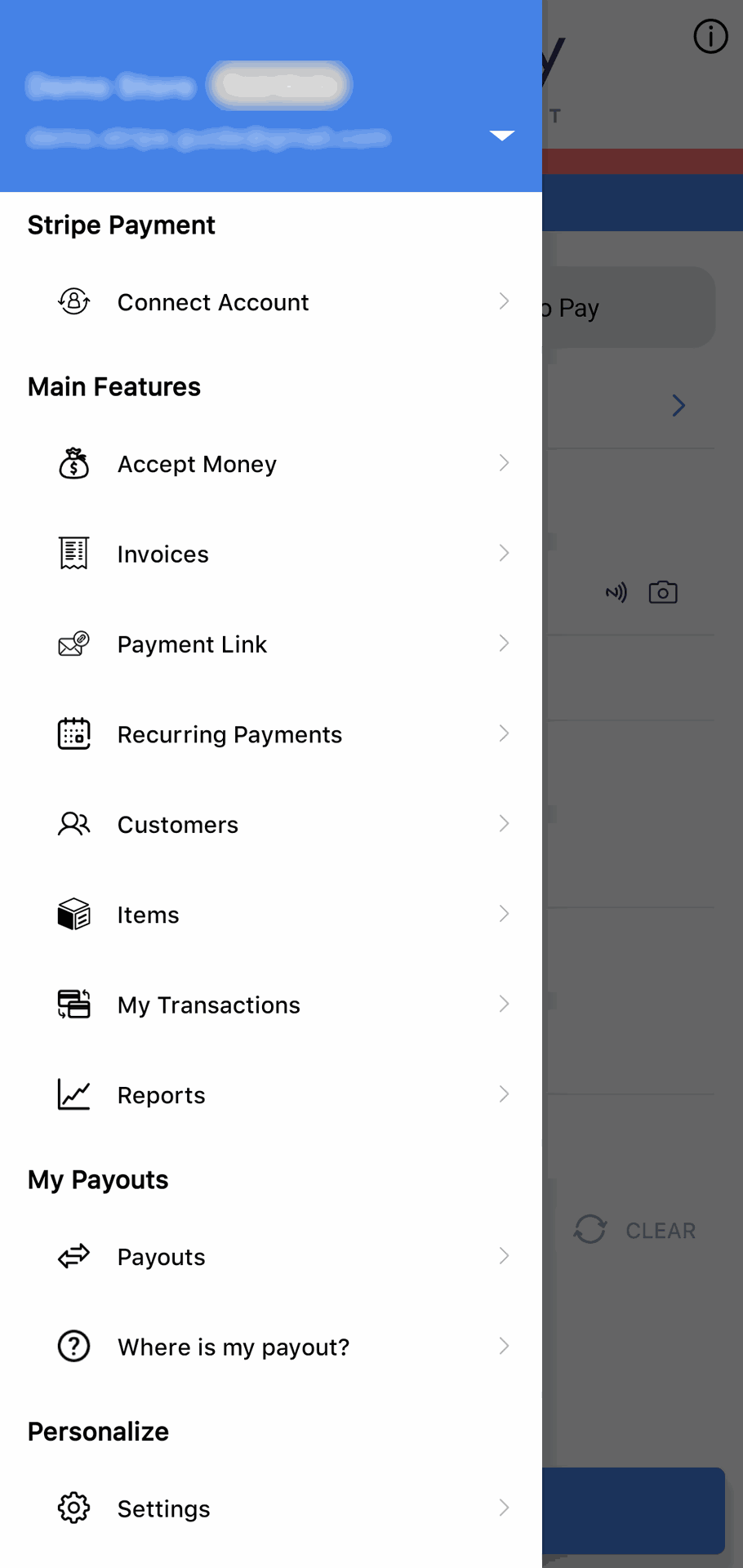
Step - 1 Tap “Connect” in FacilePay
Open the menu -> Connect Account, or Accept Card Money page -> Click Charge Card button -> tap Connect when the app asks you to connect Stripe.
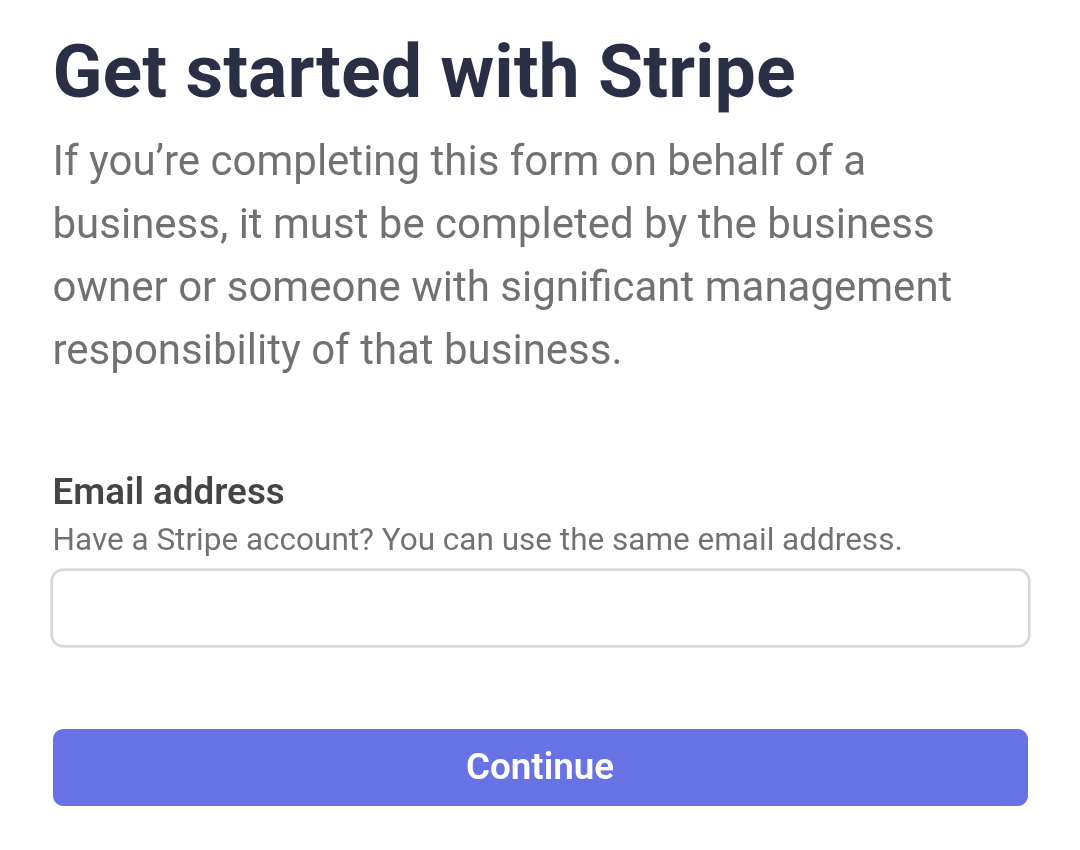
Step - 2. Enter your email
The Stripe page opens inside the app. Enter your email address.
Already have Stripe? Use the same email and sign in with your password.
New to Stripe? Just continue — you'll create an account in the next steps.
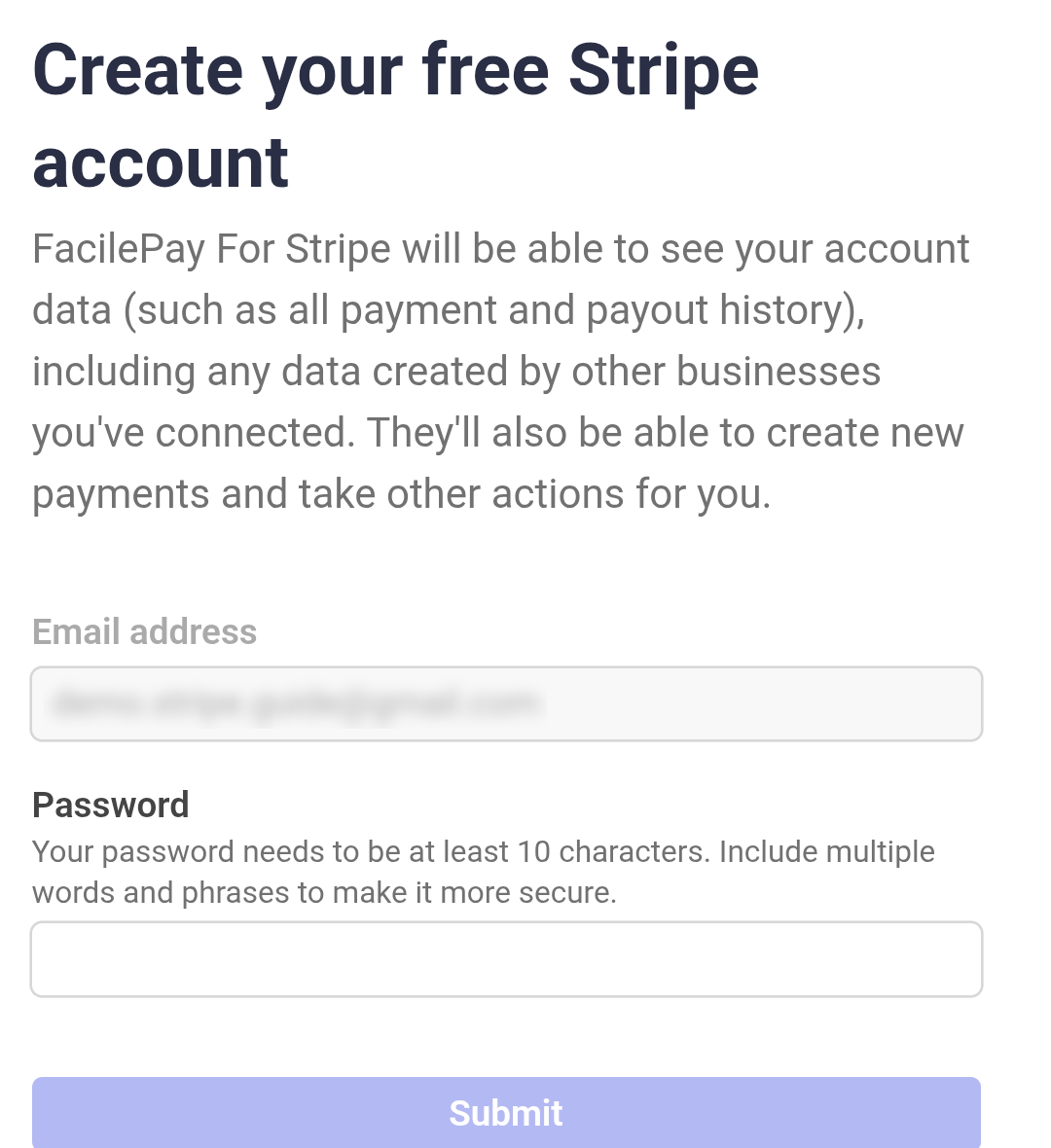
Step - 3. Create your account (or sign in)
New to Stripe? Your email is pre-filled — create a password (at least 10 characters) and tap Submit.
Already have Stripe? Sign in with your password, select the business account you want to connect, tap Connect — and you're done (jump to step 9).
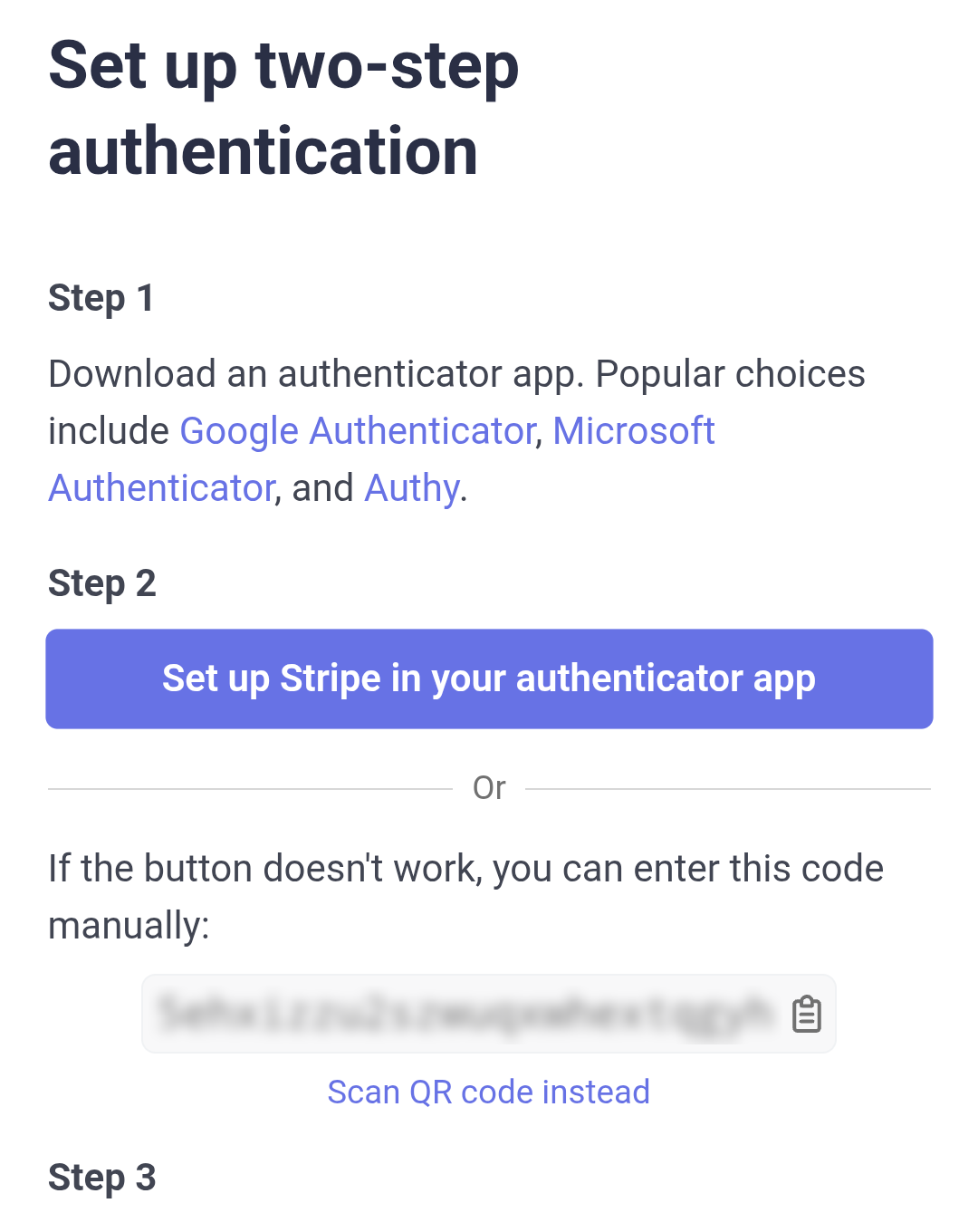
Step - 4. Secure your account (two-step verification)
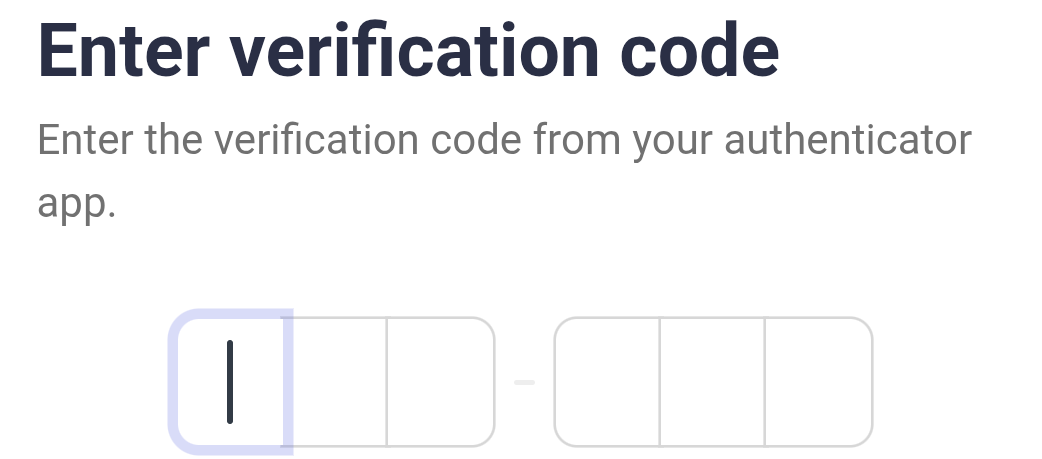
Stripe protects your money with a second security step. Choose an authenticator app or your phone (SMS), then enter the 6-digit verification code.
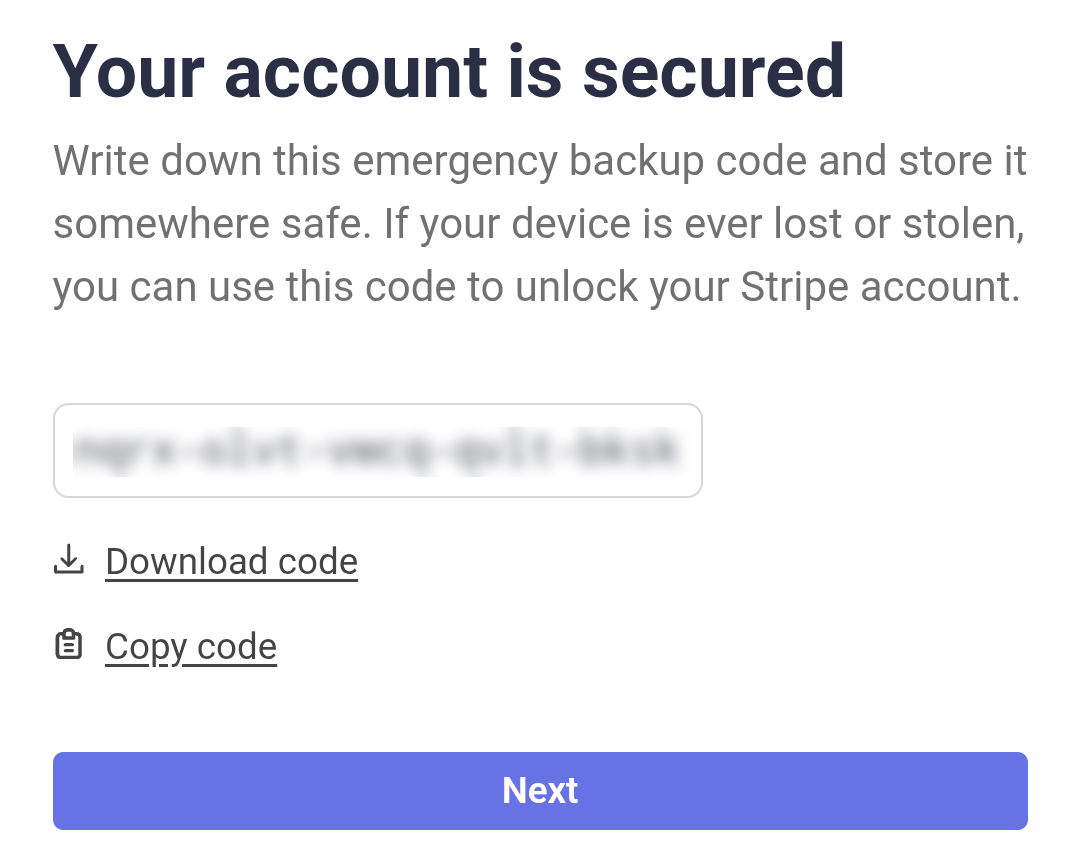
🔑 Stripe then shows you an emergency backup code — write it down and keep it safe. You'll need it if you ever lose your phone.
Step - 5. Choose your country & business type
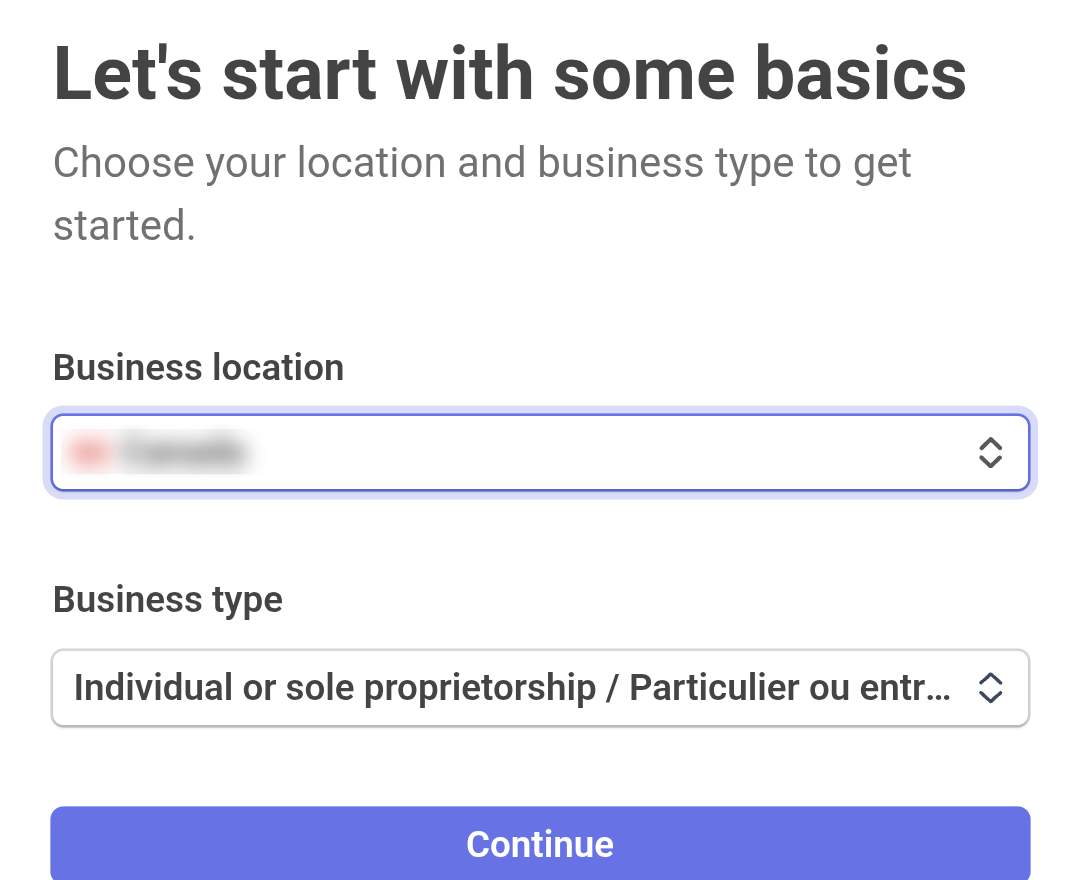
Select your business location and business type (individual/sole proprietorship or company).
🌍 Important: Stripe supports businesses in specific countries only, and your account's country is fixed when the account is created — it cannot be changed later. Make sure you're set to the country where your business is registered.
Step - 6. Fill in your business & personal details
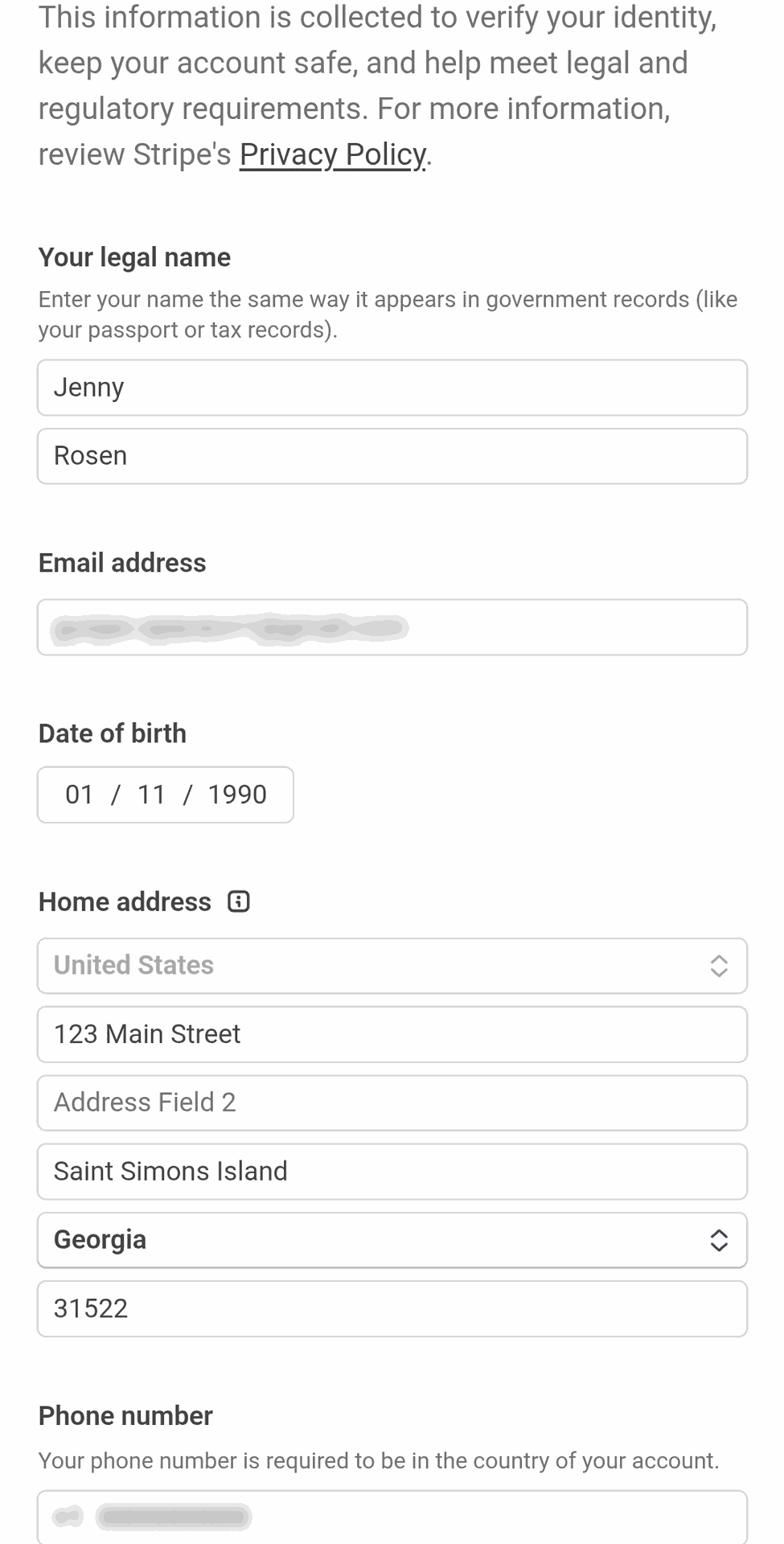
Tell Stripe about your business: name, address, phone number and your industry. Then your personal details: legal name, date of birth, home address. In some cases Stripe may ask for a photo of your ID — this is a standard financial regulation requirement.
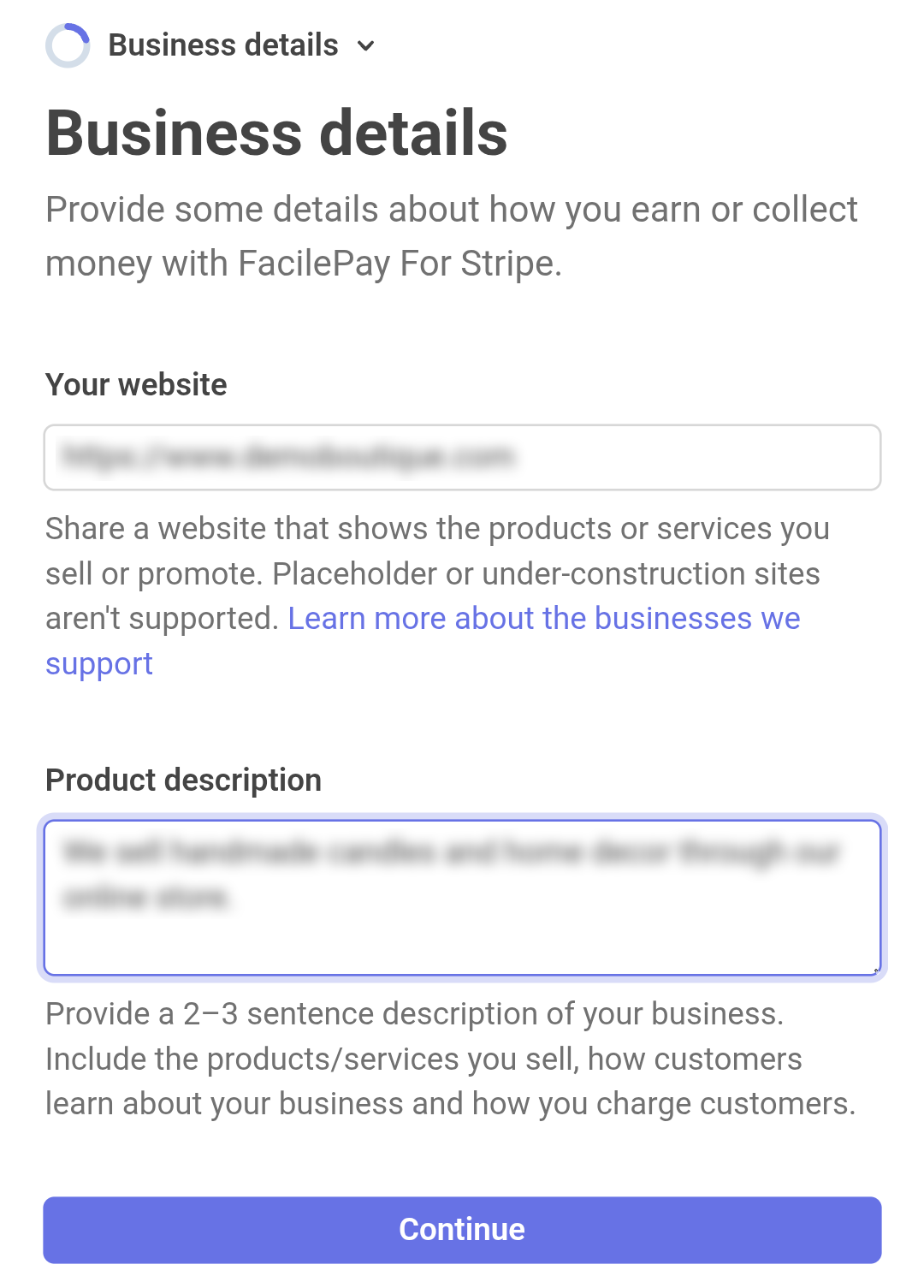
Stripe also asks for your business website — don't have one? No problem: you can enter a short description of what you sell instead.
🏢 Registered company? Have your business/incorporation number ready, plus the details of any owner holding 25% or more.
Step - 7. Add your public details
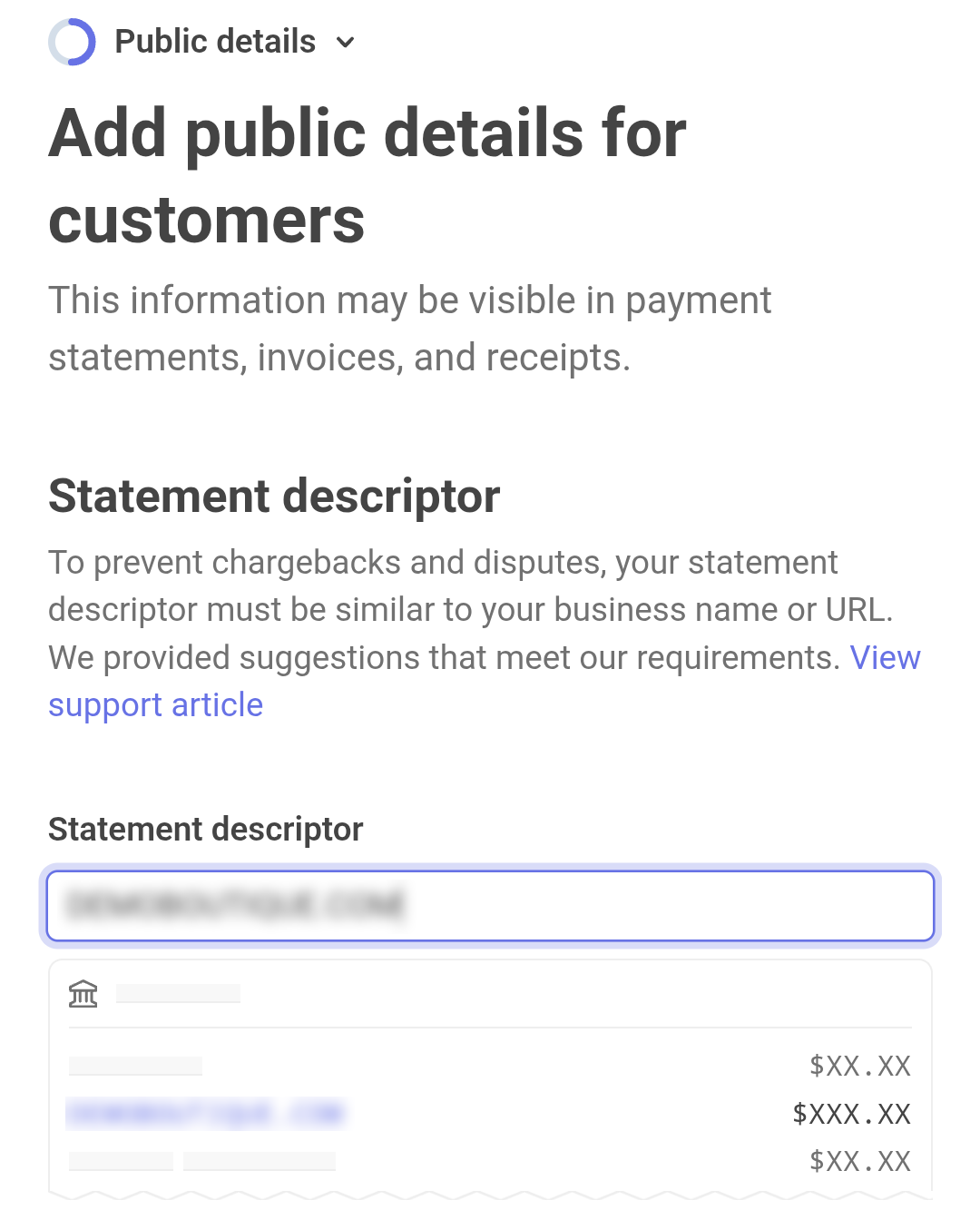
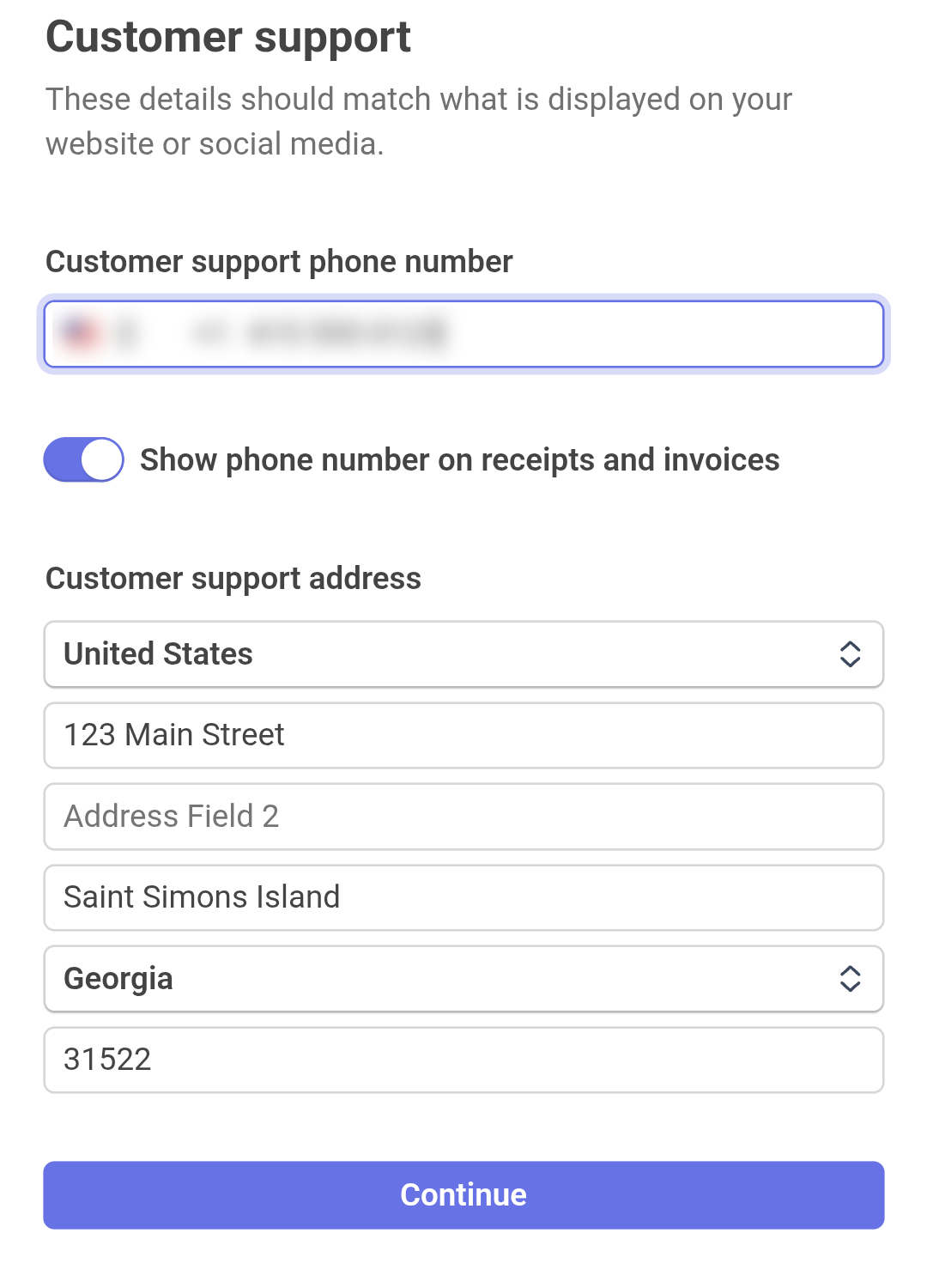
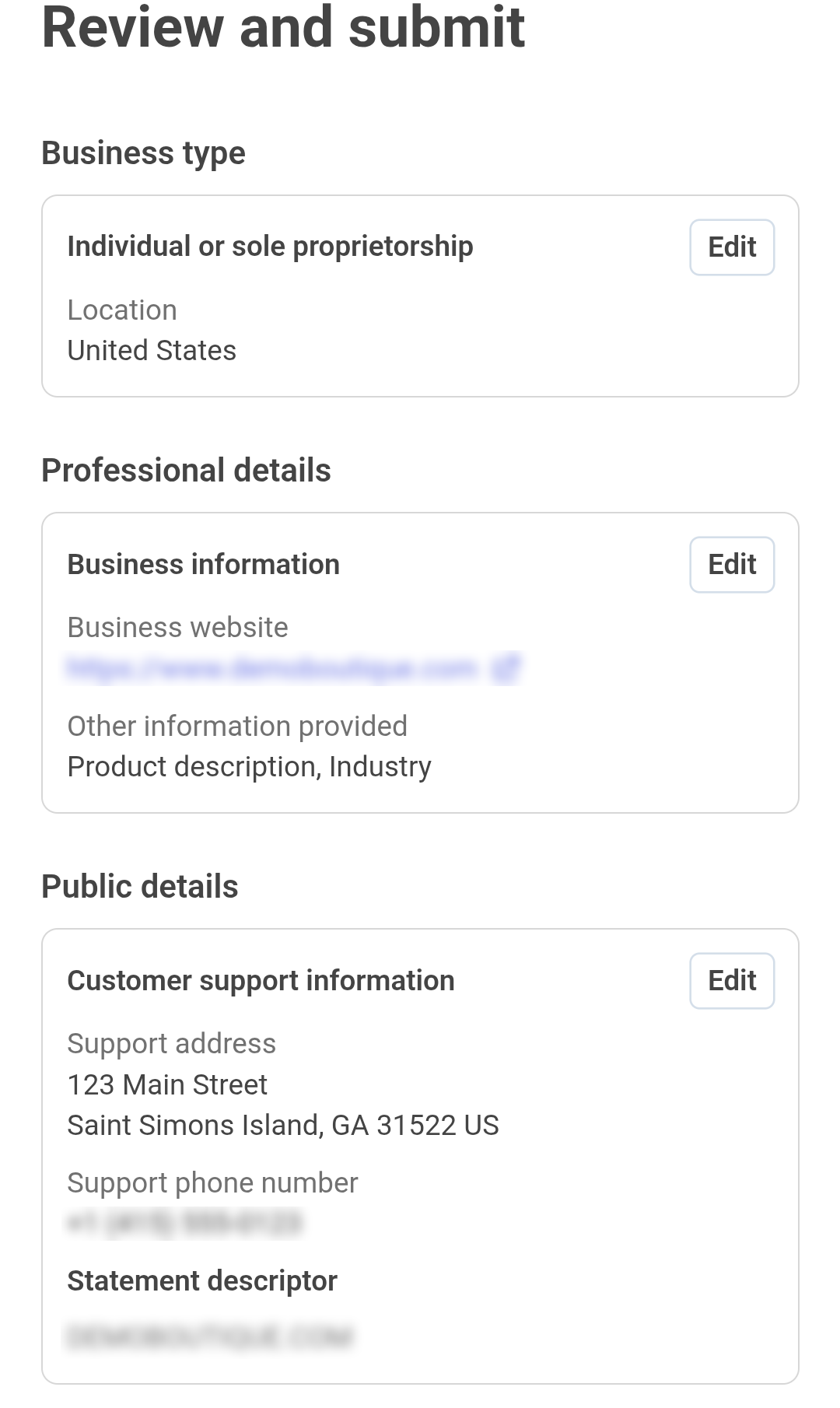
Set the statement descriptor — the business name your customers will see on their card statement (it must look like your business name or website). You can also add a customer support phone number and address.
Step - 8. Add your bank account
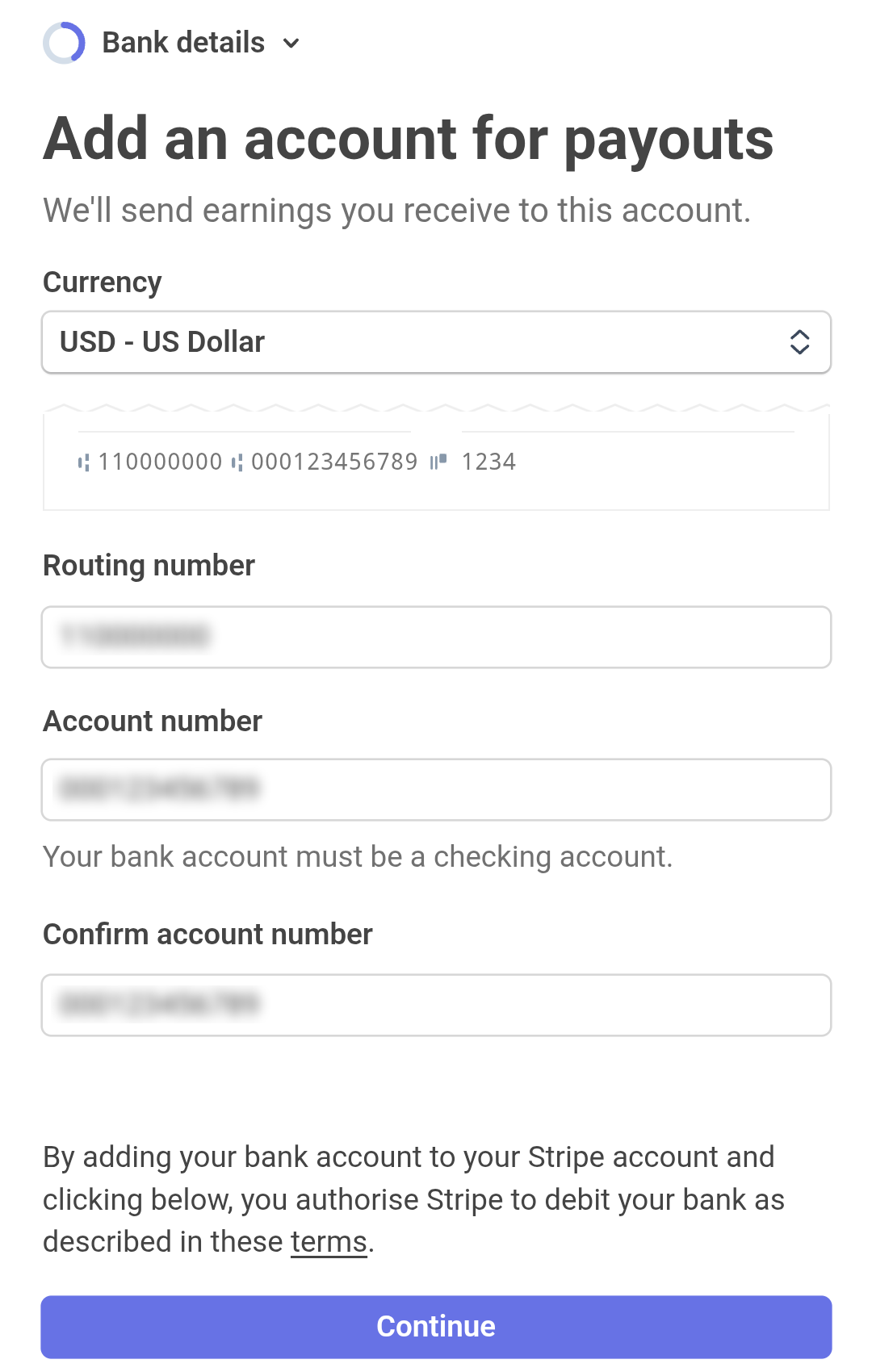
Enter your bank account details — this is where Stripe deposits the money you collect. In the US you'll need your routing number and account number. It must be a checking account in your business's country.
Step - 9. Review and submit
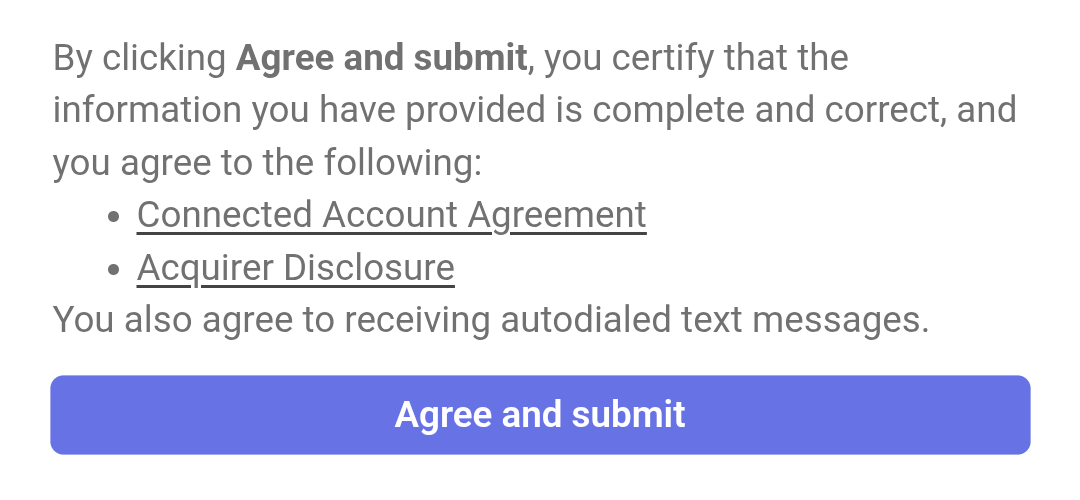
Review your details on the summary screen, then tap Agree and submit. Stripe brings you back to FacilePay automatically — and you're connected! 🎉
You can now accept card payments, send payment links and create invoices.
💡 Good to know
- Didn't finish? No problem. Tap Connect again anytime — Stripe remembers where you stopped.
- Why so many questions? Stripe is a regulated payment provider. Verification protects you and your customers.
- When do I get my money? Stripe sends payouts to your bank account automatically. The first payout can take 7–14 days; after that it's usually 2–3 business days.
- Fees? You only pay per successful transaction — no monthly Stripe fee.
Need help?
We're happy to help you get set up.